Build plan files using a Scheduler job
This uses back-end processing so you can still utilize your application. This is helpful when building a lots of plan files. You can schedule it to run whenever you want. 1:00 am, for example. When you use the task pane builder, it ties up your application. Nightly recalculation of plan files if lots of changes to drivers were made during the day. It saves the plan file with all updates back to the budget tables. It systematically goes through whatever subset of departments had updates to drivers. All kinds or processing, scheduling, report running, batch jobs, imports = a lot of functions that can be scheduled at any time (convenience). Perform a lot of back office functions at a convenient time, i.e. during the night or during the day (won't tie up the application).
To confirm that no errors occurred, review the log for errors after the scheduled job completes.
-
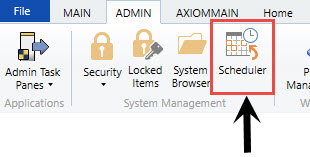
From the Admin ribbon tab, click Scheduler.
- In the Job ribbon tab, click Open.
- Double-click the Budgeting folder.
-
Double-click Build & Process Budget Files.
NOTE: By default, the job is already set up to run, but you can complete steps 5-9 if you want to filter the plan files to build and process. Otherwise, skip to step 10.
-
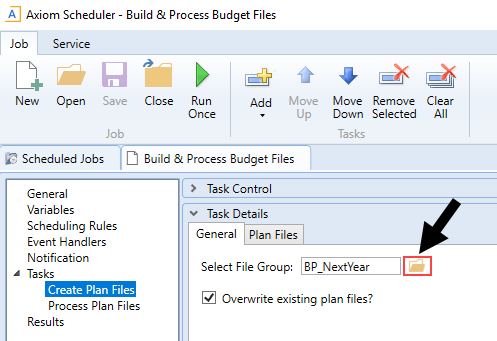
In the left-hand navigation, click Tasks > Create Plan Files (if it's not already selected).
-
In the General tab, click the folder icon.
-
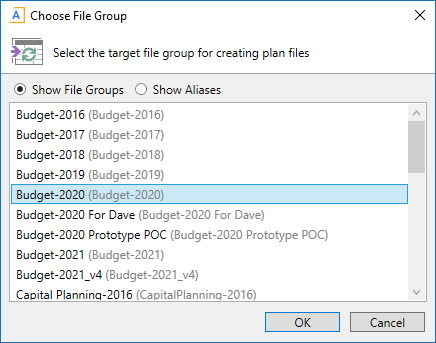
Select the file group in which to select the plan file to create.
-
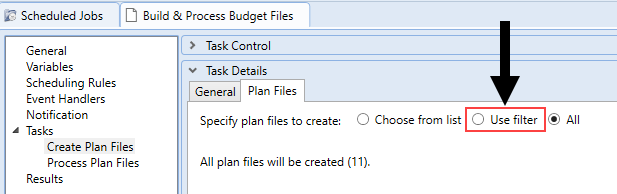
Click the Plan Files tab, and click Use filter.
- From the list, select the plan files to create by clicking the check box next to the left of the DEPT column.
-
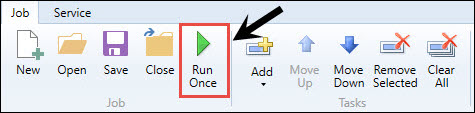
In the Job tab, click Run Once.